Translate

Showing posts with label Domino Serv. Show all posts

Saturday, November 19, 2022

Download options for Notes/Domino 8.5.3 Fix Packs


Downloadable files

Abstract

This document provides download information for Notes/Domino 8.5.3 Fix Packs, including Fix Central Fix IDs and Passport Advantage part numbers.

Download Description


8.5.3 Fix Pack 5 Incremental Installers
8.5.3 Fix Pack 4 Incremental Installers
8.5.3 Fix Pack 3 Incremental Installers
8.5.3 Fix Pack 2 Incremental Installers
8.5.3 Fix Pack 1 Incremental Installers
Additional information


NOTE: The installer for Domino Interim Fixes (hotfixes) and Fix Packs built 9 July 2012 or later requires a Perl 5.6.0 or later distribution on Unix & Linux platforms. For details, see technote 1600910.

8.5.3 Fix Pack 5 Incremental Installers

Notes Basic Configuration

Platform
Fix Central
Passport Advantage Part Number
Fix ID
File name & Download link
W32 Notes_853FP5_Basic_W32 lotus_notes853FP5_basic_win.exe
CIN2QEN
Mac Notes_853FP5_Basic_MAC lotus_notes853FP5_basic_mac.dmg
CIN2REN


Notes Standard Configuration

Platform
Fix Central
Passport Advantage Part Number
Fix ID
File name & Download link
W32 Notes_853FP5_Standard_W32 lotus_notes853FP5_win.exe
CIN2TEN
Mac Notes_853FP5_Standard_MAC lotus_notes853FP5_mac.dmg
CIN2SEN
Linux (Debian Install) Notes_853FP5_Standard_DebianInstall_Linux lotus_notes853FP5_linuxUb.tar
CIN2VEN
Linux (RPM Install) Notes_853FP5_Standard_RPMInstall_Linux lotus_notes853FP5_linux.tar
CIN2UEN


Domino

Platform
Fix Central
Passport Advantage Part Number
Fix ID
File name & Download link
W32 DominoServer_853FP5_W32 lotus_domino853FP5_w32.exe
CIN2XEN
W64 DominoServer_853FP5_W64 lotus_domino853FP5_w64.exe
CIN2YEN
Solaris DominoServer_853FP5_Sol lotus_domino853FP5_solaris.tar
CIN2ZEN
Linux DominoServer_853FP5_Linux lotus_domino853FP5_linux_x86.tar
CIN30EN
AIX DominoServer_853FP5_AIX32 lotus_domino853FP5_aix32.tar 
CIN31EN
AIX64 DominoServer_853FP5_AIX64 lotus_domino853FP5_aix64.tar
CIN32EN
zSeries DominoServer_853FP5_zSeries lotus_domino853FP5_zlinux64.tar
CIN33EN
IBM i 5.4 DominoServer_853FP5_IBMi_5.4 lotus_domino853FP5_systemiv5.exe
CIN2PEN
IBM i
6.1 & 7.1
DominoServer_853FP5_IBMi_6.1_7.1 lotus_domino853FP5_systemiv6v7.exe
CIN2WEN
 
 
Notes Basic Configuration

Platform
Fix Central
Passport Advantage Part Number
Fix ID
File name & Download link
W32 Effective 14 May 2013, the Windows version of Notes 8.5.3 Fix Pack 4 is superseded by a revised version of Interim Fix 1 for Notes 8.5.3 Fix Pack 4, which is available for download from Fix Central. For download links and background information, see technote 1636024 - Interim Fix 1 for IBM Notes 8.5.3 Fix Pack 4
Mac Notes_853FP4_Basic_MAC lotus_notes853FP4_basic_mac.dmg
CIH96EN


Notes Standard Configuration

Platform
Fix Central
Passport Advantage Part Number
Fix ID
File name & Download link
W32 Effective 14 May 2013, the Windows version of Notes 8.5.3 Fix Pack 4 is superseded by a revised version of Interim Fix 1 for Notes 8.5.3 Fix Pack 4, which is available for download from Fix Central. For download links and background information, see technote 1636024 - Interim Fix 1 for IBM Notes 8.5.3 Fix Pack 4
Mac Notes_853FP4_Standard_MAC lotus_notes853FP4_mac.dmg
CIH97EN
Linux (Debian Install) Notes_853FP4_Standard_DebianInstall_Linux lotus_notes853FP4_linuxUb.tar
CIH9AEN
Linux (RPM Install) Notes_853FP4_Standard_RPMInstall_Linux lotus_notes853FP4_linux.tar
CIH99EN


Domino

Platform
Fix Central
Passport Advantage Part Number
Fix ID
File name & Download link
W32 DominoServer_853FP4_W32 lotus_domino853FP4_w32.exe
CIH9DEN
W64 DominoServer_853FP4_W64 lotus_domino853FP4_w64.exe
CIH9EEN
Solaris DominoServer_853FP4_Sol lotus_domino853FP4_solaris.tar
CIH9FEN
Linux DominoServer_853FP4_Linux lotus_domino853FP4_linux_x86.tar
CIH9GEN
AIX DominoServer_853FP4_AIX32 lotus_domino853FP4_aix32.tar
CIH9HEN
AIX64 DominoServer_853FP4_AIX64 lotus_domino853FP4_aix64.tar
CIH9IEN
zSeries DominoServer_853FP4_zSeries lotus_domino853FP4_zlinux64.tar
CIH9JEN
IBM i 5.4 DominoServer_853FP4_IBMi_5.4 lotus_domino853FP4_systemiv5.exe
CIH9BEN
IBM i
6.1 & 7.1
DominoServer_853FP4_IBMi_6.1_7.1 lotus_domino853FP4_systemiv6v7.exe
CIH9CEN


8.5.3 Fix Pack 3 Incremental Installers

Fix Central

Domino

Platform
Individual Fix IDs
File name & Download link
W32 DominoServer_853FP3_W32 lotus_domino853FP3_w32.exe
W64 DominoServer_853FP3_W64 lotus_domino853FP3_w64.exe
Solaris DominoServer_853FP3_Sol lotus_domino853FP3_solaris.tar
Linux DominoServer_853FP3_Linux lotus_domino853FP3_linux_x86.tar
AIX DominoServer_853FP3_AIX32 lotus_domino853FP3_aix32.tar
AIX64 DominoServer_853FP3_AIX64 lotus_domino853FP3_aix64.tar
zSeries DominoServer_853FP3_zSeries lotus_domino853FP3_zlinux64.tar
IBM i 5.4 DominoServer_853FP3_IBMi_5.4 lotus_domino853FP3_systemiv5.exe
IBM i
6.1 & 7.1
DominoServer_853FP3_IBMi_6.1_7.1 lotus_domino853FP3_systemiv6v7.exe


Notes Basic Configuration

Platform
Individual Fix IDs
File name & Download link
W32 Notes_853FP3_Basic_W32 lotus_notes853FP3_basic_win.exe
Mac Notes_853FP3_Basic_MAC lotus_notes853FP3_basic_mac.dmg


Notes Standard Configuration

Platform
Individual Fix IDs
File name & Download link
W32 Notes_853FP3_Standard_W32 lotus_notes853FP3_win.exe
Mac Notes_853FP3_Standard_MAC lotus_notes853FP3_mac.dmg
Linux (Debian Install) Notes_853FP3_Standard_DebianInstall_Linux lotus_notes853FP3_linuxUb.tar
Linux (RPM Install) Notes_853FP3_Standard_RPMInstall_Linux lotus_notes853FP3_linux.tar


8.5.3 Fix Pack 2 Incremental Installers

Fix Central

Domino

Platform
Individual Fix IDs
File name & Download link
W32 DominoServer_853FP2_W32 lotus_domino853FP2_w32.exe
W64 DominoServer_853FP2_W64 lotus_domino853FP2_w64.exe
Solaris DominoServer_853FP2_Sol lotus_domino853FP2_solaris.tar
Linux DominoServer_853FP2_Linux lotus_domino853FP2_linux_x86.tar
AIX DominoServer_853FP2_AIX lotus_domino853FP2_aix32.tar
AIX64 DominoServer_853FP2_AIX64 lotus_domino853FP2_aix64.tar
zSeries DominoServer_853FP2_zSeries lotus_domino853FP2_zlinux64.tar
IBM i 5.4 DominoServer_853FP2_IBMi_5.4 lotus_domino853FP2_systemiv5.exe
IBM i
6.1 & 7.1
DominoServer_853FP2_IBMi_6.1_7.1 lotus_domino853FP2_systemiv6v7.exe

Notes Basic Configuration

Platform
Individual Fix IDs
File name & Download link
W32 Notes_853FP2_Basic_W32 lotus_notes853FP2_basic_win.exe
Mac Notes_853FP2_Basic_MAC lotus_notes853FP2_basic_mac.dmg


Notes Standard Configuration

Platform
Individual Fix IDs
File name & Download link
W32 Notes_853FP2_Standard_W32 lotus_notes853FP2_win.exe
Mac Notes_853FP2_Standard_MAC lotus_notes853FP2_mac.dmg
Linux (Debian Install) Notes_853FP2_Standard_DebianInstall_Linux lotus_notes853FP2_linuxUb.tar
Linux (RPM Install) Notes_853FP2_Standard_RPMInstall_Linux lotus_notes853FP2_linux.tar


8.5.3 Fix Pack 1 Incremental Installers


Fix Central

Domino

Platform
Individual Fix IDs
File name & Download link
W32 DominoServer_853FP1_W32 lotus_domino853FP1_w32.exe
W64 DominoServer_853FP1_W64 lotus_domino853FP1_w64.exe
Solaris DominoServer_853FP1_Sol lotus_domino853FP1_solaris.tar
Linux DominoServer_853FP1_Linux lotus_domino853FP1_linux_x86.tar
AIX DominoServer_853FP1_AIX lotus_domino853FP1_aix32.tar
AIX64 DominoServer_853FP1_AIX64 lotus_domino853FP1_aix64.tar
zSeries DominoServer_853FP1_zSeries lotus_domino853FP1_zlinux64.tar
IBM i 5.4 DominoServer_853FP1_IBMi_5.4 lotus_domino853FP1_systemiv5.exe
IBM i
6.1 & 7.1
DominoServer_853FP1_IBMi_6.1_7.1 lotus_domino853FP1_systemiv6v7.exe

Notes Basic Configuration

Platform
Individual Fix IDs
File name & Download link
W32 Notes_853FP1_Basic_W32 notesbasic_853FP1_windows.exe
Mac Notes_853FP1_Basic_MAC notesbasic_853FP1_mac.dmg


Notes Standard Configuration

Platform
Individual Fix IDs
File name & Download link
W32 Notes_853FP1_Standard_W32 notes_853FP1_windows.exe
Mac Notes_853FP1_Standard_MAC notes_853FP1_mac.dmg
Linux (Debian Install) Notes_853FP1_Standard_DebianInstall_Linux notes_853FP1_linux.tar
Linux (RPM Install) Notes_853FP1_Standard_RPMInstall_Linux notes_853FP1_linuxUb.tar


Domino Designer & Domino Administrator
  • If running Notes 8.5.3 Basic Configuration or Notes/Admin (Basic edition) 8.5.3, use the Notes 8.5.3 Fix Pack 1 Basic install.
  • If running Notes 8.5.3 Standard Configuration or Notes/Admin/Designer (Standard edition) 8.5.3, use the Notes 8.5.3 Fix Pack 1 Standard install.

Passport Advantage

Customers with Passport Advantage Software Maintenance can also download these incremental installers from IBM Passport Advantage Online.

Domino

Platform
Part
Number
Description
W32 CI6EDEN IBM Lotus Domino Server 8.5.3 Fix Pack 1 for Windows
W64 CI6EEEN IBM Lotus Domino Server 8.5.3 Fix Pack 1 for Windows 64
Solaris CI6EFEN IBM Lotus Domino Server 8.5.3 Fix Pack 1 for Solaris Sparc
Linux CI6EGEN IBM Lotus Domino Server 8.5.3 Fix Pack 1 for Linux on Intel
AIX CI6EHEN IBM Lotus Domino Server 8.5.3 Fix Pack 1 for AIX
AIX64 CI6EIEN IBM Lotus Domino Server 8.5.3 Fix Pack 1 for AIX64
zSeries CI6EAEN IBM Domino Server 8.5.3 Fix Pack 1 Linux on zSeries
IBM i 5.4 CI6EBEN IBM Lotus Domino Server 8.5.3 Fix Pack 1 for IBM i5.4
IBM i 6.1 & 7.1 CI6ECEN IBM Lotus Domino Server 8.5.3 Fix Pack 1 for IBM i6.1&7.1


Notes Basic Configuration

Platform
Part
Number
Description
Mac CI6E5EN Notes Basic 8.5.3 Fix Pack 1 Mac English
Windows CI6E4EN Notes Basic 8.5.3 Fix Pack 1 Windows English


Notes Standard Configuration

Platform
Part
Number
Description
Windows CI6E7EN Notes STD 8.5.3 Fix Pack 1 Windows English
Mac CI6E6EN Notes STD 8.5.3 Fix Pack 1 Mac English
Linux
(Debian Install)
CI6E9EN Notes STD 853 Fix Pack 1 Linux(Debian Install) English
Linux
(RPM Install)
CI6E8EN Notes STD 853 Fix Pack 1 Linux(RPM Install) English


Cross reference information
Segment Product Component Platform Version Edition
Messaging Applications IBM Domino

8.5.3.5, 8.5.3.4, 8.5.3.3, 8.5.3.2, 8.5.3.1, 8.5.3
Messaging Applications IBM iNotes

8.5.3.5, 8.5.3.4, 8.5.3.3, 8.5.3.2, 8.5.3.1, 8.5.3


Wednesday, January 11, 2017

Kiểm tra RBLs


Kiểm tra RBLs

Hướng dẫn dưới đây hỗ trợ bạn kiểm tra xem IP của bạn có nằm trong "sổ đen" (black list) của các tổ chức chống thư rác (spam) hay không.
Khi IP của bạn có trong black list của các tổ chức chống spam và được xem là nguồn gởi spam, thì thư điện tử bạn gởi đi từ IP đó sẽ có thể bị lọc (vào hòm thư rác) hoặc bị chặn và không tới đích.
Các tổ chức chống spam phổ biến: Spamhaus.org, Spamcop.net, BarracudaCentral.org
Xem IP của bạn ở mục "Xem IP" bên trên và làm theo các hướng dẫn dưới đây để kiểm tra.

Spamhaus.org

  1. Bấm vào đây để vào trang web kiểm tra IP của Spamhaus
  2. Gõ IP của bạn và nhấn Lookup
    Spamhaus
  3. Các dòng kết quả đều màu xanh, IP của bạn an toàn. Dòng kết quả màu đỏ báo IP của bạn có trong black list là nguồn gởi spam. Bấm vào liên kết bên dưới để tiếp tục.
    Kiểm tra IP
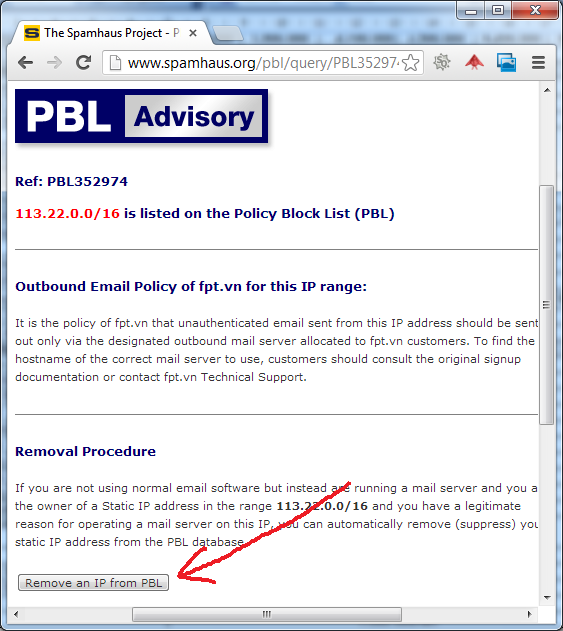
  4. Bấm vào nút "Remove an IP from..."
    Gỡ IP khỏi black listĐồng ý với qui định của Spamhaus
  5. Điền chính xác thông tin vào biểu mẫu rồi nhấn "Submit". Lưu ý, địa chỉ email phải là địa chỉ bạn đang nhận email được, vì Spamhaus sẽ gởi cho bạn 1 email có mã xác nhận.
    Biểu mẫu gỡ IP
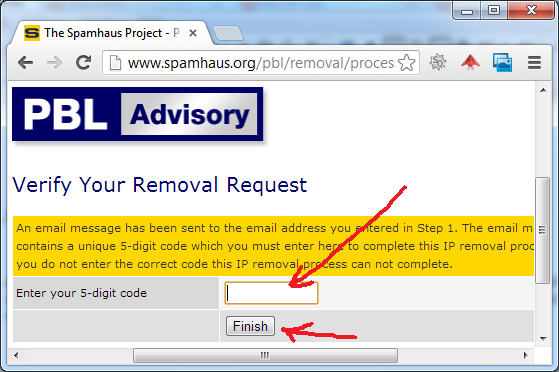
  6. Kiểm tra hộp thư bạn điền ở bước trên để lấy email có mã xác nhận (gồm 5 chữ số) và nhập vào màn hình kế tiếp.
    Xác nhận yêu cầu gỡ IP
    Nhấn "Finish" và đợi trong khoảng 30 phút để Spamhaus thực hiện yêu cầu gỡ IP ra khỏi black list

Spamcop.net

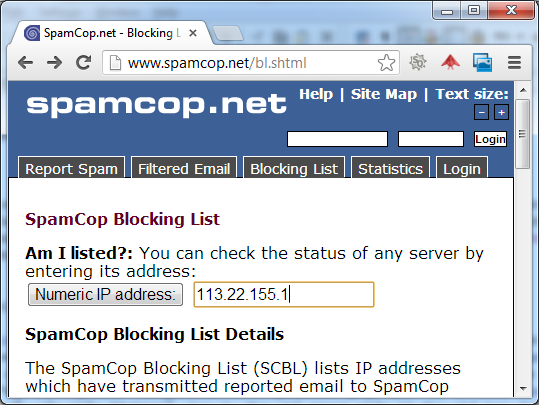
  1. Bấm vào đây để vào trang web kiểm tra IP của SpamCop
  2. Gõ IP của bạn và nhấn Enter
    Spamcop
  3. IP của bạn có trong black list.
    ip gởi spam
  4. Điền đầy đủ thông tin vào biểu mẫu và đợi khoảng 1 giờ để Spamcop gỡ Ip của bạn ra khỏi black list.

BarracudaCentral.org

  1. Bấm vào đây để vào trang web kiểm tra IP của Barracuda
  2. Gõ IP của bạn, mã nhận dạng và nhấn Lookup
    kiểm tra IP
  3. Thông báo màu đỏ cảnh báo IP của bạn có trong black list. Bấm vào "click here" để yêu cầu gỡ.
    black list
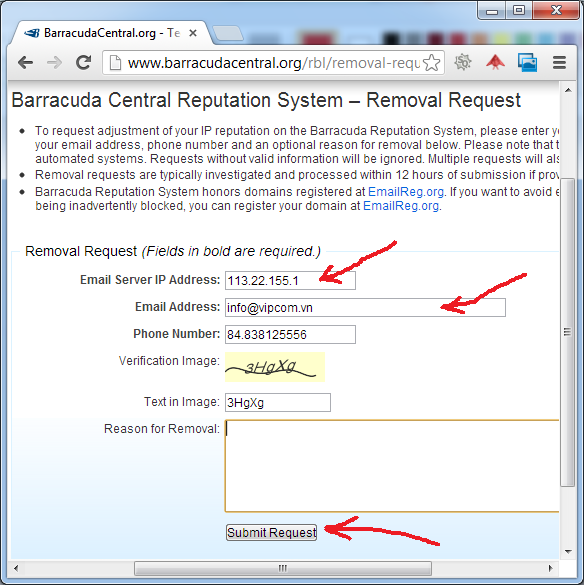
  4. Điền đầy đủ thông tin vào biểu mẫu.
    Biểu mẫu gỡ IP
    Vui lòng chờ khoảng 1 giờ để Barracuda gỡ Ip của bạn ra khỏi black list

Friday, November 27, 2015

Domino Administrators ID file certificate has expired ... No Problem


Came across this at a new client site today, the client knows the Domino Administrators password, but cannot use the Administration client (or any Notes client) with the Administrators ID file, because the Administrators ID file certificates have expired.

It's a pretty simple thing to fix.

EITHER:
  • Use your server's Notes client to recertify the Administrator.

OR
  • Get hold of an ID file for a user who hasn't expired,
  • Add that user to the 'LocalDomainAdmins' group,
  • Access the Domino Directory on the server and recertify the Admin ID,
  • Remove the user from the 'LocalDomainAdmins' group,
  • Done.

The details:

Using a server.

  • Go to the physical domino server,
  • Browse to the Domino program folder,
  • Locate nlnotes.exe,
  • Run it.

Yes I KNOW this is not a 'supported configuration' but hey, it Domino - #ThisS***JustWorks.

 
  • You now have a notes client, which you can use to access the names.nsf locally (the Domino Directory),
  • Go to 'People',
  • Choose (highlight) the Administrator,
  • Choose (from the menu) ACTIONS -> Recertify Selected People,
  • Choose the Administrators organization certifier,
  • Enter the certifier password.
  • Choose a date a long time from now (you WANT your Admin ID file to expire every two years???),
  • Done.

The Long way - elevate another user.


If you know the Administrators password, there is a fair chance you can still access the Domino Web Administrator using that password:
  • Log-in to the Webadmin using: http://yourserver.com/webadmin.nsf and the Administrators Username and Password,
  • Go to 'People and Groups',
  • Edit the 'LocalDomainAdmins' group to include the users name who's ID file has not expired,
  • On the Domino Console, 'load updall -r names.nsf', then 'dbcache flush',
  • Start the users Notes client,
  • Open the Domino Directory (names.nsf) on the server,
  • Choose People from the navigator,
  • Highlight the Administrator,
  • Choose (from the menu) ACTIONS -> Recertify Selected People,
  • Choose the Administrators organization certifier,
  • Enter the certifier password.
  • Choose a date a long time from now (you WANT your Admin ID file to expire every two years???),
  • Using any method you want (you've got a recertified Admin now), remove the user from the 'LocalDomainAdmins' group,
  • Done.


Hope this helps someone, this has happened a few times in the last couple of months when we pick up a new (old) Notes customer who hasn't needed to use the Admin ID in a while.

Domino Administrators ID file certificates have expired? No Problem.

Q, Administrator ID has expired; no one can administer the Domino server


Question

The administrator's ID file has been allowed to expire, and there are no other ID files which can be used to access the server. Attempts to access the server using an expired administrator ID results in the following error:
    "Server error - your certificate has expired"
There are no other administrative IDs that can be used to access the server. What are your options?

Answer

Perform the following workaround to certify the expired ID:

1. Open the Domino Administrator client. (The server should be set to "local".)

2. Select the Configuration tab.

3. Select Tools -> Certification -> Certify.

4. Select the certifier ID and enter the password. Set the server to Local.

Note: The following error may appear: "The public key that is being used does not match the one that was certified." This occurs because the client cannot connect to the Notes certifier document in the address book on the server. To continue past this error, select "Yes" when prompted with the following: "Do you wish to continue without updating the Certifier ID?"

5. Select the Notes/Admin ID to certify. Note: You will see an error: "Entry not found in index, Do you want to certify anyway?" Click Yes.

6. Ensure that the server is still set to "local" (at the top of the dialog), set the expiration date, and then click Certify.

7. At this point you should have access to the server, as long as public key checking is not enabled on the server. If public key checking is enabled on the server, you must complete step 8 before you can access the server.

8. Copy the public key from the ID into the Person document (Certificates tab -> Notes certified public key field.)
  1. File -> Security -> User Security (this opens the user ID)
  2. Select Your Identity -> Your Certificates
  3. Click the "Other actions" button and choose Mail, Copy Certificate (Public Key)...
  4. Select Copy Certificate (this will place the public key on the system clipboard)
  5. Close the open windows to exit User Security.
  6. Select the People view in the server's Domino Directory, open the user's Person document in Edit mode, and click the Certificates tab
  7. Select the entire contents of the Notes certified public key field and paste the key from the clipboard; save and close
  8. Rebuild the view by pressing the key combination Shift + F9.


Q, How to manually recertify an expired ID


Question

You have a Lotus Notes user ID that has expired and you would like to manually recertify it.
The ID can open Notes, because the password is valid, but the user cannot do anything else, as the end date has expired. If the user selects File -> Tools -> User ID -> Certificate -> Request Certificate, the following message displays:
Server Error: Your certificate has expired.
 

Answer

Administrator: Recertify user's ID
A user has a Notes ID that has an expired certificate. These steps are performed by the server administrator to correct the user's expired ID.

  1. After obtaining the user ID, you (as the administrator) launch the Lotus® Domino® Administration client.

  2. Open the Configuration tab, expand Certification (located on the right hand pane) and select Certify.

  3. Select the Certifier ID file.

  4. From the Choose Certifier ID dialog box, select the O or OU certifier that was originally used to certify the user ID.

  5. Enter the password for the certifier ID.

  6. From the Choose ID to Certify dialog box, select the user ID to be recertified.

  7. Enter the password for user ID to be recertified.

  8. [Optional] In the Certify ID dialog box, you may set or change the following:
    Registration server, expiration date of the certifier and password length.

  9. Click Certify.
    The Status window displays:
    Updating address book entry for username/org
    Successfully updated address book entry for username/org
    Username/org successfully certified

  10. Choose "No" when you receive the following dialog box:
    Would you like to certify another?

  11. Provide the newly-recertified ID file to the user.


User: Merge the new certificate
Once the administrator recertifies the safe.ID and returns the ID to the user, the user must perform the following steps:

  1. Select File -> Security -> User Security -> Your Identity -> Your Certificates -> Get certificates button -> Import (Merge) Notes Certificate.

  2. Enter password.

  3. The dialog box then prompts the user to choose the safe.ID that has been recertified and it is then merged into the original user ID.


Administrator: Recertify an expired Server ID
If an administrator needs to recertify an expired Server ID, the following steps should be followed:
  1. Certify the server id file by following the "Administrator: Certifying an expired server ID file" steps included below.

  2. Verify that the expiration date has been changed in the server.id file.

  3. From the administration client select Configuration -> Tools -> ID Properties, then select the Server ID file.

  4. Place the new server.id back on the server (c:\lotus\domino\data), and restart the server.

Administrator: Certifying an expired server ID file
How to certify an expired server id file.
  1. After obtaining the server ID (c:\lotus\domino\data is the default location ), you (as the administrator) launch the Domino Administrator client.

  2. Open the Configuration tab, expand Certification (located on the right hand pane) and select Certify.

  3. Select the Certifier ID file.

  4. From the Choose Certifier ID dialog box, select the O or OU certifier that was originally used to certify the user ID.

  5. Enter the password for the certifier ID.

  6. From the Choose ID to Certify dialog box, select the server ID to be recertified.

  7. Enter the password for server ID to be recertified, if necessary (not all server ID files require a password).

  8. [Optional] In the Certify ID dialog box, you may set or change the following:
    Registration server, expiration date of the certifier and password length.
    The server.id file should have an expiration date 99 years in the future (default ).

  9. Click Certify.
    The Status window displays:
    Updating address book entry for username/org
    Successfully updated address book entry for username/org
    Username/org successfully certified

  10. Choose "No" when you receive the following dialog box:
    Would you like to certify another?

  11. Copy the newly-recertified ID file to the server (c:\lotus\domino\data, by default).


Tuesday, August 18, 2015

Lotus Notes & domino là gì?


Trong bài viết này tôi xin chỉ nói những thông tin cơ bản nhất về lotus notes & domino.
Lotus notes & domino là sản phầm được phát triển bởi IBM. Lotus Notes & Domino có thể hiểu một cách đơn giản thì nó là một “hệ thống” các phần mềm hỗ trợ làm việc cộng tác.
Lotus Domino: là phần mềm máy chủ, nó gồm có: web server, mail server và ldap server.
Lotus Notes: là phần mềm client, nó gồm có: Lotus notes, domino designer và domino admin.
  • Lotus notes: là phần mềm dùng để chạy các ứng dụng của lotus, có thể là các ứng dụng trên domino server hay các úng dụng trên local. Ở đây, email cũng được coi là một ứng dụng lotus ^^. hay có thể dụng như một mail client để check các mail của hệ thống mail khác như exchange v.v… Chú ý: các ứng dụng của Lotus notes có thể được thiết kế để chạy được trên nền web.
  • Domino designer: phần mềm editor để thiết kế các ứng dụng của lotus.
  • Domino admin: là phần mềm để quán trị hệ thống domino server.
Bài viết sau: cài đặt và cấu hình Lotus notes & domino (cơ bản)

Cài đặt IBM Lotus Notes


Lotus Notes là bộ sản phẩm client gồm có:
– Domino Admin: sử dụng dể quản trị IBM Domino Server
– Lotus Notes: Sử dụng để quản lý các và chạy các ứng dụng Lotus Notes
– Domino Designer: là bộ công cụ phát triển các ứng dụng Lotus Notes
Các bước thực hiện cài đặt (Việc cài đặt tương tự như cài đặt các ứng dụng desktop khác, tất nhiên. Các bạn xem video nhé):
  1. Double click vào file cài đặt IBM Lotus Notes. Click chọn Next và chờ quá trình giải nén. sau khi chương trình giải nén gói cài đặt ta bắt đầu quá trình cài đặt.
  2. Làm theo hướng dẫn trên giao diện wizard để thực hiện cài đặt. chú ý: phần custom setup các bạn chọn các thành phần cài đặt là Domino Admin, Domino Designer, Lotus Notes. và tiếp tục cho đến khi quá trình cài đặt kết thúc.
  3. Cấu hình Lotus Notes: sau khi cài đặt xong bộ lotus, các bạn bận lotus notes để bắt đầu quá trình cấu hình. (Chú ý bật Domino Server trước khi bắt đầu cấu hình)
Cấu hình:
Trong phần user information:
  • Your name: ở đây khi cài domino ta đã khai báo người dùng administrator. do vậy, ở đây ta sử dụng người dùng là administrator, nếu không ở đây ta sẽ nhập tên người dùng được cấp tài khoán (chú ý: người dùng phải có file id).
  • Domino server: tên hoặc địa chỉ máy chủ domino, ở đây có thể nhập là: xxx.xxx.xxx.xxx hoặc 127.0.0.1 hoặc demo/tandan/VN.
Sau khi khai báo người dùng, chương trình sẽ hỏi mật khẩu (ở đây mật khẩu là của người dùng administrator được tạo trong quá trình cấu hình Domino Server)
Nếu chương trình yêu cầu file id thì các bạn chọn file id của người dùng. bạn có thể tìm thấy file id của người dùng administrator trong thư mục [domino]\data\user.id (chú ý là nếu trong quá trình cài đặt domino các bạn không tick cho phép tạo file id thì chương trình sẽ tạo file user.id là file id của administrator trong thư mục [lotus]\data\user.id)
Sau khi quá trình cấu hình Lotus Notes hoàn tất chương trình sẽ mở Lotus Notes ra. Các bạn vào Open -> Domino administrator để mở domino administrator và cấu hình một số tham số khác của Domino.
Cấu hình domino:
  • Từ Lotus Notes, Chọn Open -> Domino Administrator, hoặc bạn có thể mở trực tiếp Domino Administrator ra.
  • Trong quá trình mở có thể Domino Admin báo không kết nối được đến server, không sao các bạn cứ click OK, sau khi vào Domino Admin mở server sau cũng được
  • Nếu Domino Admin không tìm được Domino Server thì phần server sẽ báo server là local
    để mở domino server, các bạn vào File -> open. Các bạn nên nhập IP của server (ở đây tôi nhập luôn là 127.0.0.1)
  • sau khi mở server, các bạn vào phần config để cấu hình một số tham số cho server (Xem video).  ở đây tôi chỉ cấu hình những cái cơ bản và đơn giản nhất, để thực hiện các cấu hình khác các bạn có thể đọc thêm tài liệu help của Domino Admin, các tài liệu được cung cấp bởi IBM, hoặc tìm kiếm từ các tài nguyên trên mạng.
  • Các cấu hình trong phần sercurity tôi cho phép toàn bộ user có thể thực hiện các tác vụ sign, run với agent, xpage, chạy các đoạn code java, javascript, dom… nếu không cho phép thì, tất nhiên, người dùng không thể chạy được các agent….
  •  Trong phần port -> internet port cho phép các bạn đặt lại các cổng kết nối cho http, diiop, các giao thức mail ….
  • Trong phần Internet Protocols -.> Domino Web Engine -> Http Session -> Session Authentication cho phép các bạn đặt lại cách xác thực. Có 3 tùy chọn: disable (mặc định, basic authentication),  single server (form authentication), Multiple servers (SSO). Các bạn có thể đặt là 2 kiểu đầu, riêng SSO thì sau này tôi sẽ có bài viết riêng về SSO Với domino (nhờ người khác viết thôi, tôi ko chuyên về hệ thống, chỉ chuyên về code)
  • Sau khi đã cấu hình xong các bạn restart lại server.
Video cho bài viết:

Categories: Lotus Notes & Domino

Cài đặt và cấu hình lotus domino

31/08/2011 1 comment
Việc cài đặt domino cũng đơn giản như việc cài đặt các ứng dụng khác, ở đây tôi chỉ hướng dẫn các bạn cài đặt và cấu hình ở mức đơn giản nhất.
Các bước cài đặt và cấu hình lotus domino.
  1. Chạy file cài đặt: Sau khi chạy file cài đặt, các file cài đặt sẽ được extract ra ổ cứng.
  2. Thực hiện quá trình cài đặt: làm theo hướng dẫn trên màn hình (chủ yếu là click nút next) và chờ quá trình copy file hoàn tất.
  3. Sau khi quá trình copy file hoàn tất, click vào biểu tượng Lotus Domino Server để bước vào quá trình setup server (Xem video).
  4. Trong qua trình cài đặt các bạn có thể tick chọn tạo file id của admin sau này dùng hoặc có thể tạo file này khi lần đầu tiên cài notes
  5. Sau khi setup server, mở browser và gõ địa chỉ http://127.0.0.1 bạn sẽ thấy man hình giao diện mặc định của lotus domino

  6.  
Một số bước cấu hình đơn giản: Các bạn xem trong phần cài đặt và cấu hình Lotus notes nhé, vì cấu hình domino server được thực hiện thông qua lotus admin
     

Tạo ứng dụng domino


Các ứng dụng viết cho domino được đóng gói trong một file có đôi .nsf, ngoài ra các bạn còn thấy một định dạng file nữa là file .ntf (File template). Để tạo một ứng dụng domino ta sẽ tạo từ các file template, ứng dụng mới ta sẽ sử dụng blank template.
Để tạo một ứng dụng từ template ta làm theo các bước sau:
  1. Từ giao diện IBM Lotus Notes
  2. Copy template design lên server (có thể là server local) nếu cầu (Xem thêm ở video thứ 2).
  3. File – Application – New, hoặc ấn phím tắt Ctrl + N. Chương trình sẽ mở ra dialog New Application
  4. Chọn server chạy ưng dụng muốn tạo (ex: demo/tandan/VN), Nhập tiêu đề ứng dụng, tên file (có đuôi .nsf). chú ý: để đặt file vào trong thư mục ta gõ đường dẫn [tenthumuc]/[tenfile.nsf]
  5. Phần Specify Template for New Application, Bạn chọn server chứa file template (có thể là local) sau đó chọn template bên dưới.
  6. Click OK

Video:

(Video 01: tạo ứng dụng từ blank template)

Sau khi tạo một ứng dụng từ một template thường ta sẽ phải đăng ký các thành phần của database này với server. Để đăng ký với database với server ta làm theo các bước sau:
  1. Từ  giao diện Domino Administrator, mở server chứa application cần đăng ký
  2. Files – Chọn application
  3. Click chuột phải vào ứng dụng -> Sign, Các bạn chờ một lúc để server đăng ký ứng dụng này.
Video:

(Video 02: tạo ứng dụng từ một template bất kỳ)

Trên đây là cách để các bạn tạo một ứng dụng domino từ một template có sẵn (Có thể là blank template). Các bạn nên chú ý phần chọn server chạy ứng dụng, thư mục đặt application. khi ứng dụng được đặt trong thư mục (ex: demo/demo01.nsf) thì đường dẫn URL của ứng dụng trên browser sẽ là http://%5Bserver%5D: [port]/[thumuc1/thumuc2/…/thumucn]/[tenfile.nsf] (ex: http://127.0.0.1/demo/demo01.nsf).
Ngoài ra: các bạn có thể copy thẳng file nsf các bạn có vào thư mục data của domino, xong tôi khuyến cáo không nên làm theo cách này khi các bạn không biết rõ nguồn file ứng dụng, các bạn có thể gặp vấn đề về quyền truy cập file, sign bit…. Các bạn chỉ nên làm theo cách này khi đã quen với Lotus Domino.
Chúc các bạn thành công.

Tạo ứng dụng Hello world!


hào các bạn!
Các phiên bản đầu tiên của IBM Lotus Domino chỉ cho phép các ứng dụng (Một số người gọi là database) chạy trên nên Lotus Notes. Nhưng bắt đầu từ bản Domino 5.c thì các ứng dụng của Lotus Domino (Mình xin gọi nhanh là ứng dụng Domino) bắt đầu hỗ trợ trên nền web (tất nhiên vẫn hỗ trợ chạy trên nền Lotus Notes) và chỉ thực sự tốt từ phiển bản 6.0, và tùy từng nền chạy ứng dụng khác nhau ta sẽ có các design khác nhau cho phù hợp. Từ bản Domino 8.0 IBM Lotus Domino đưa ra một định nghĩa mới là XPAGES cho phép một design chạy cả trên browser và cả trên Lotus Notes, tuy nhiên các kiến thức về lập trình Domino “cổ điển” vẫn không thể thiếu..
Trước tiên mình sẽ nói về cách thức phát triển một ứng dụng Domino theo cách “cổ điển”. Với các bạn mới bắt đầu viết ứng dụng Domino theo mình cũng không nên lao vào làm xpages ngay, các bạn có thể sẽ bị choáng ngợp bới các thành phần design của Domino.
Trong các bài viết của mình sẽ chủ yếu hướng đến lập trình trên nền web, vì hướng tới của mình là tạo các ứng dụng chạy xpages chứ không phải các ứng dụng “cổ điển” kia. xong cái gì cũng có gốc của nó, nên mình sẽ bắt đầu bằng những thứ “cổ điển”.
Sau đây mình sẽ demo các tạo một ứng dụng Hello World chạy trên browser.
Ứng dụng chạy trên browser là ứng dụng Domino có các thành phần design cho phép chạy trên nền web.
  1. Tạo một ứng dụng từ blank template (demo02.nsf)
  2. Mở ứng dụng vừa tạo trong Domino Designer
  3. Trong view Application của Domino Designer, double-click vào pages. click New page.
  4. Nhập tên page vào ô Name (ex: default).
  5. Trong phần soạn thảo nhập: Hello world!
  6. Save page
mở browser gõ địa chỉ: http://127.0.0.1/demo02.nsf/default?openpage
Vậy là bạn đã tạo được một ứng dụng domino có thành phần design chạy trên web rồi đấy.
Video:

Để đặt trang mặc định cho ứng dụng – trong Lotus Notes bạn click chuột phải vào ứng dụng – Application – Properties – chọn tab Launch (tab thứ 5 từ bên trái sang). Trong phần cấu hình này có 2 phần: cấu hình cho Notes và cấu hình cho Web. để cấu hình trang mặc định cho web thì trong phần When opened in a browser, chọn Open designated page, chọn trang mặc định  (default). ngoài mở thành phần mặc định là page ra bạn xem trong danh sách còn một số cách thành phần khác như xpages, frameset,….

Cho phép người dung khách (Anonymous) vào ứng dụng. trong Lotus Notes bạn click chuột phải vào ứng dụng – Application – Access control…, trong dialog Access control list to: click Add – nhập Anonymous – Trong User type:  people, Access: author, click ok.


Video:

Phần Access control list là phần rât quan trọng trong một ứng dụng domino, sau này mình sẽ có bài viết riêng về quản lý tài nguyên ứng dụng.
Tạm biệt!

Các thành phần design trong một ứng dụng Domino cơ bản.


Chắc hẳn với các bạn bắt đầu tìm hiểu các viết một ứng dụng trên nền Domino đều đặt ra câu hỏi “Cần những thứ gì để tạo một ứng dụng domino?” và “dữ liệu của nó được lưu trữ ở đâu?”
Với các bạn đã phát triển ứng dụng trên nền công nghệ khác (.net hay php….) thì thành phần design và dữ liệu được tách biệt riêng, như các trang web của asp hay của php đều đặt design… trên một web server (IIS, apache…), còn database thì đặt trên một server DBMS riêng (SQL, MySQL). Domino thì không giống thế, tất cả design, dữ liệu các ứng dụng Domino đều lưu vào file nsf hoặc ntf.
Các ngôn ngữ lập trình được sử dụng khi phát triển ứng dụng
  1. HTML (client)
  2. Javascript (client)
  3. Cascading Style Sheets (CSS) (client)
  4. Formula (Server).
  5. LotusScript (Server – Ngôn ngữ này có rất nhiều điểm giống MS Visual Basic).
  6. Java (Server).
  7. Simple action
Về Formula và LotusScript các bạn có thể xem trong tài liệu Help của Domino designer.
Như vậy để viết một ứng dụng Domino chạy trên nền web ta phải biết ít nhất 5/6 ngôn ngữ này (Theo tôi, có thể chọn LotusScript hoặc Java).
Các thành phần design trong ứng dụng
  1. Page: là thành phần design được sử dụng để hiển thị thông tin. Bạn có thể sử dụng page để viết một trang như trạng about, có thể sử dụng để viết các tài nguyên css, javascript, nhược điểm của page là khả năng truy vấn dữ liệu kém.
  2. Form: Mọi thứ bạn làm với page được thì đều có thể làm với form được, ngoài ra, form có khả năng truy vấn dữ liệu tốt. khi các bạn đã quen rồi các bạn sẽ thấy khi cần hiển thị các thông tin liên quan đến dữ liệu ta thường sẽ đều sử dụng form. Form cung cấp một cấu trúc để tạo và hiển thị các document (ở đây mình không dịch từ document để tránh nhầm lẫn với các tài liệu thông thường, mình sẽ giải thích kỹ hơn về trong khi nói về cấu trúc dữ liệu của domino).
  3. View: sử dụng để hiển thị các document theo một truy vấn nào đó. với các bạn đã làm việc với một MS SQL hoặc MySQL thì view của domino cũng thế
  4. Folder: giống view, xong các document không được lấy theo một truy vấn mà thực hiện bằng code.
  5. Frameset: Là tập hợp các HTML frame, nó chia một trang web của bạn thành các phần (session) khác nhau.
  6. Subform: Thành phần design giúp bạn chia nhỏ cấu trúc của một form
  7. Agent: là một chương trình độc lập (stand-alone programs) thực hiện một nhiệm vụ nào đó. Theo tôi có thể chia ra làm 2 loại agent:* Agent chạy tự động: là các agent chạy khi sảy ra một action của hệ thống. không được điều khiển bởi người dùng. như:
    * Agent bình thường: là các agent chạy khi sảy ra một action của người dùng, như sau khi load document, người dùng click một button….
  8. Resources: Các tài nguyên khác
    • Imagess
    • Files
    • Applets
    • Style Sheets
  9. Ngoài ra còn một số thành phần khác nhưng ít dụng sau này các bạn tự tìm hiểu.
Cấu trúc lưu trữ dữ liệu
Chắc hẳn lâu nay các bạn lập trình đều quen với kiểu dữ liệu quan hệ.  Dữ liệu của các ứng dụng Domino là kiểu dữ liệu phi quan hệ. Dữ liệu của domino được lưu trữ thành các document, trong document có các field.
Để các bạn dễ tưởng tượng, mình xin mạo muộn đưa ra một phép so sánh như sau: các field của domino giống như các trường trong một bảng của MS SQL, như vậy document sẽ giống như một bản ghi (record). Domino hoàn toàn không có khái niện table, chỉ có document là thực thể thể hiện cho một định dạng dữ liệu. ví dụ:
Trong một document lưu trữ thông tin của nhân sự Nguyễn Văn A ta có thể đưa ra một mô tả cấu trúc dữ liệu như sau:
Document:
Field Type Value
HoVaTen Text Nguyen Van A
NgaySinh DateTime 1/1/1970
QueQuan Text Ha Noi
DiaChi Text Ha Noi
SoCMTND Text 123456789
Ở trên ta có nói FORM cung cấp một cấu trúc để tạo và hiển thị document, vậy form và document có quan hệ với nhau như thế nào. Khi mình mới bắt đầu làm việc với domino mình bị nhầm lần là form nó giống như table trong MS SQL nhưng không phải vậy. Khi một document có field tên là form có giá trị trùng với tên một form design thì khi mở document ra domino sẽ sử dụng form đó để hiển thị thông tin về document này. Hoặc khi bạn gọi cậu lệnh save từ một form thì domino sẽ tạo một document có field tên là form trùng với tên form hiện tại và các field khác có giá trị trùng với các field được khai báo trên form. ohh, như vậy form thì khác gì table đâu? một điểm khác và cũng rât mở của Domino là bạn có thể thêm một trường vào document trong quá trình thực thi (on runtime). ngoài cách tạo document bằng cách ghi lại một form ra bạn có thể tạo document bằng code trong quá trình chạy chương trình. Không những thế, bạn còn có thể tạo ra các view, folder, thay đổi câu truy vấn của các view, xóa một field của document trong quá trình chạy.
Các thành phần thường dùng của một form
Ta thấy rằng form là một thành phần design rất quan trọng trong một ứng dụng domino, sau này khi làm việc với xpage thì form giống như thành phần khai báo các trường được sử dụng trong một document. Trong một form thường có các thành phần sau:
  1. Text
  2. Field
  3. Hotspot (Buttons…)
  4. Resource
  5. Computed text
  6. HTML text
  7. Embeded elements (view, folder)
Text và HTML text khác nhau chỗ nào: Text khi hiển thị trên browser sẽ giữ nguyên format, còn HTML text thì sẽ được đối xử như một đoạn mã HTML. như vậy để viết code HTML trên form các bạn phải chuyển từ text thành HTML text. Để làm thao tác này bạn chọn đoạn text cần chuyển – Menu Text – Pass_Thru HTML và ngược lại.
Ngoài ra còn các thành phần khác, bạn tham khảo thêm trong bộ help của Domino Designer (Lotus Domino Designer Basic User Guide and Reference > Application Design > Designing forms) .
URL Command

URL command là sự kết hợp của các đặc điểm của URL với một câu lệnh điều khiển các item như là một document hay view. cấu trúc của URL command có dạng
http://Host/DominoObject?Action&Arguments
Phần này trong tài liệu Help của Domino Designer nói rất kỹ, các bạn đọc trong này nhé (Lotus Domino Designer Basic User Guide and Reference > Application Design > URL commands for Web applications).
Mình xin cung cấp một số các command hay dùng
OpenForm: mở một form
OpenView: Mở một view hoặc folder
OpenAgent: Chạy một agent (cho phép chạy trên web).
OpenDocument: Mở document (dạng readonly)
EditDocument: Mở document (dạng editable)
DeleteDocument: Xóa document
OpenPage: Mở một trang
/?Login: đăng nhập
/?Logout: Đăng xuất
Với các thành phần như trên các bạn đã có thể phát triển được các ứng dụng Domino đơn giản rồi đấy. Trong một khuôn khổ một bài viết mình không thể đi hết và chi tiết các thành phần design của một Domino Application được, các bạn nên đọc kỹ hơn trong tài liệu help của Domino Designer.
Sau đây mình sẽ demo cách dụng một số thành phần trên để viết ứng dụng cho phép nhập, hiển thị thông tin nhân sự của một cơ quan.
Download vi du: http://www.mediafire.com/?br4zc4r2ge4fscc
Video:

Sử dụng Unicode trong java agent.


Mặc định Domino Designer đặt font là Cp1252 nên khi các bạn ghi lại java agent có chữ tiếng việt thì sẽ báo lỗi: “Some characters cannot be mapped using Cp1252 character encoding….”

Để cấu hình lại, từ giao diện của Domino Designer bạn click menu File – Preferences. trên cây menu bên trái chọn General – Wordspace. Trong phần Text encoding chọn Other -> UTF-8. Click OK.

Cách này mình thấy  chạy trên windows XP thì chạy tốt rồi nhưng vẫn bị lỗi một số ký tự như ‘đ’ khi chạy trên Windows Server 2003.

Truy xuất dữ liệu trong ứng dụng Domino!


Trong các bài viết trước mình đã giới thiệu về các thành phần (component) cơ bản và thường xuyên để tạo ra một ứng dụng domino. Bài này mình sẽ đưa ra các phương pháp để truy xuất dữ liệu trong một ứng dụng Domino.
Như các bạn đã biết, Một ứng dụng domino khi được tạo ra thì cả phần design và database được lưu trong cùng 1 file .nsf. Các đơn vị dữ liệu được lưu ở đây là các document, nó tương ứng với các record trong MS SQL. Ứng dụng Domino quản lý tài nguyên của nó thông qua các ID. với 1 document sẽ có tương ứng 2 loại ID là Notes ID và Universal ID (UNID).
  1. Truy xuất Document
    • Thông qua URL: bạn có thể sử dụng URL command để truy xuất và một document, cấu trúc của URL Command là
      Mở document: http(s)://host:port/[folder…]/[database.nsf]/[view]/[UNID]?OpenDocument
      Hiệu chỉnh: http(s)://host:port/[folder…]/[database.nsf]/[view]/[UNID]?EditDocument
      Xóa: http(s)://host:port/[folder…]/[database.nsf]/[view]/[UNID]?DeleteDocument
      @chat: Delete document thông qua 1 url, nếu vậy bạn ở 1 document ra, chỉ cần thay command opendocument bằng command deletedocument là xóa được rồi, thật là nguy hiểm. Cài này trong thực tế là mình đã gặp, nhiều người làm nhiều rồi, làn ứng dụng lớn rồi vẫn bị, cho người khác truy cập vào document, người ta thay command trên URL nó xóa béng mất :D. thực ra Domino quản lý tài nguyên rất chặt chẽ thông qua quyền truy cập và tài nguyên của người dùng, bạn chỉ được xóa document khi bạn được cấp quyền xóa trong Access Control List (ACL), và bạn có quyền hiệu chỉnh document. bạn chỉ được đọc , hiệu chỉnh các document khi bạn được cấp quyền truy cập. Cấp độ (Access level của bạn đến đâu, là author, là reader, là designer hay chỉ là depositor, bạn là người dùng trong ACL hay chỉ là default user v.v….). Khi đã bắt tay và viết 1 ứng dụng thương mại thật sự trên nền Domino, hãy chắc rằng bạn biết phải phân phát tài nguyên cho người dùng thế nào.????
    • Thông qua database: Từ database hiện tại, bạn có thể truy xuất Document khi có UNID hoặc Notes ID của document
      Ví dụ: Bạn có document có UNID là 858859600f579bd2472579140065033dSession session = getSession();
      AgentContext agentContext = session.getAgentContext();
      Database db = agentContext.getCurrentDatabase();
      Document doc = db.getDocumentByUNID(“858859600f579bd2472579140065033d”);
    • Thông qua view: Bạn có thể sử dụng cột đầu tiên của 1 view (cột này được sắp xếp) như 1 tập các key, sau đó truy xuất document thông qua các key này. ví dụ, mình có 1 view chứa danh sách người dùng tên là “dsnguoidung” và cột dầu tiên là tên đầy đủ (được sắp xếp tăng dần). mình muốn lấy tập các document những người có tên đây đủ là “Nguyễn Văn A”.Session session = getSession();
      AgentContext agentContext = session.getAgentContext();
      Database db = agentContext.getCurrentDatabase();
      View nguoiDung = db.getView(“dsnguoidung”);
      DocumentCollection dc = nguoiDung.getAllDocumentsByKey(“Nguyễn Văn A”);Và từ DocumentCollection này, ban có thể truy xuất và các document của người dùng có tên là “Nguyễn Văn A”, Nếu bạn chắc chắn rằng giá trị Nguyễn Văn A là duy nhất bạn có thể truy xuất và thẳng document đầu tiên đó bằng hàm Document ns = nguoiDung.getDocumentByKey(“Nguyễn Văn A”);. Mình có xem qua các tài liệu tối ưu thì thấy rằng đây là cách tốt để tìm kiếm document (tốt hơn nữa là sử dụng UNID hoặc Notes ID)
    • Thông qua hàm formula: Formula cung cấp một số hàm để lấy truy xuất vào Document, thương dùng nhất là DBColumn, hàm này sẽ lấy giá trị một cột của 1 view.
  2. Tìm kiếm dữ liệu:
    • Thông qua view: như trên
    • FTSearch command từ view: cấu trúc http(s)://host:port/[folder…]/[database.nsf]/[view]?SearchView&query=[giatri]. cấu trúc này sẽ tìm kiếm full-text một giá trị có trong view hiện tại. các bạn đọc kỹ hơn trong tài liệu help của Domino Designer nhé (Lotus Domino Designer Basic User Guide and Reference > Application Design > URL commands for Web applications)
    • FTSearch từ database/view/DocumentCollection trong code: Trong code bạn có thể Full-Text search từ một collection các document thông qua câu query (gần như SQL)- [Database/View/DocumentCollection].FTSearch(String query, int max, int sortopt, int otheropt). Bạn tham khảo thêm trong tài liệu Help của Domino Designer (Lotus Domino Designer Basic User Guide and Reference > Java/CORBA Classes > Java Classes A-Z > Database classLotus Notes > Search > Doing searches). Ở đây các bạn có thể thấy rằng FTSearch từ view thông qua URL command chỉ có thể search 1 giá trị, còn FTSearch từ 1 collection document có thể mở rộng ra tìm ở trường nào, kiểu dữ liệu là gì v.v…
    • Simple search: Cách search này chỉ áp dụng được với database. cầu query giống câu query được sử dụng khi bạn tạo view, query của nó là giá trị của một hàm formula, ví dụ:String query = “Select Form = \”NhanSu\” & Name=\”Dung\” & QueQuan=\”HaNoi\””;
      DocumentCollection dc = db.search(query);
      Chú ý: khi tìm kiếm dữ liệu trong ứng dụng Domino thì ta không thể sặp xếp theo một trường nào đó, hay group dữ liệu theo một trường nào đó như trong các DBMS như MS SQL được, tìm kiếm của Domino chỉ đưa ra được 1 tập các document, có thể được sắp xếp theo 1 điều kiện có trước nào đó là theo thời gian tạo, hoặc theo “điểm số truy cập” mà thôi. để sắp sếp lại dữ liệu ta phải viết các hàm sắp sếp, hoặc một cách đơn giản hơn là tạo 1 view, có các trường được sắp xếp, sau đó lấy dữ liệu theo từng entry của view.
    Trên đây là các cách thường dùng để truy xuất 1 hoặc 1 collection các document trong 1 ứng dụng domino. Các bạn nên đọc kỹ các bài viết trong help của Domino Designer mình đã đưa ra ở trên để biết chi tiết hơn.
Ví dụ cho bài viết: http://1drv.ms/1NBVZZK
Hoặc Ví dụ cho bài viết 2 : http://www.mediafire.com/file/d86oau3mcg13gkm/CollectDocument.rar
Video:

Download Lotus Notes & Domino 8.5.3


Không rầm rộ như Microsoft, không hào nhoáng như Apple.
Sau một thời gian dài chờ đợi, cuối cùng IBM đã đưa ra phiên bản Lotus Notes & Domino 8.5.3. sau đây là link download bản trial
Lotus Domino: http://www14.software.ibm.com/webapp/download/search.jsp?pn=Lotus+Domino
Lotus Notes & Domino Administrator: http://www.ibm.com/developerworks/downloads/ls/lsndad/
Domino Designer: http://www.ibm.com/developerworks/downloads/ls/dominodesigner/index.html

Sử dụng JQuery trong app Lotus Domino code!


Jquery là một thư viện javascript đa trình duyệt hoàn toàn miễn phí, được thiết kế để đơn giản hóa lập trình javascript.
Download tại trang chủ của jquery.com
Để sử dụng JQuery trong ứng dụng Lotus Domino, đầu tiên bạn phải download source file trên trang chủ của Jquery, sau đó import vào File resource của ứng dụng.
Khai báo trong form header:
<script style=’text/javascript’ language=’javascript’ src=’jquery-1.7.1.min.js’></script>
JQuery declaration 
Và sau đó là viết code.
Video:


Design by IT Manager | Bloggerized by Themes For IT Managers | MIS-DUONG