





 2:50 PM
 MISDUONG

Before your Windows password expires, you may receive password
expiration notification every time you log on to local account or domain
user.
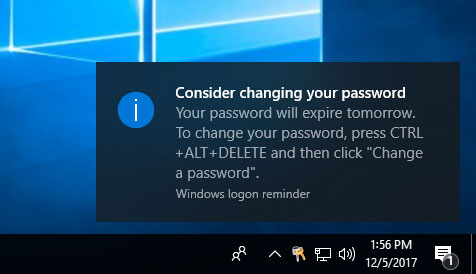
In this tutorial we’ll show you how to set the number of days prior to password expiration, during which to begin displaying password expiry notice to prompt user to change Windows password.
Tips: If you want to disable password expiry notice, you can set Windows password to never expire by following these tutorials:
Here’s how you can prompt local users to change password before expiration in Windows 10, 8, 7, Vista and XP:
If you’re running Windows Server 2016 / 2014 / 2012 / 2008 domain controller, use this method to prompt domain users to change password before expiration:
In this tutorial we’ll show you how to set the number of days prior to password expiration, during which to begin displaying password expiry notice to prompt user to change Windows password.
Tips: If you want to disable password expiry notice, you can set Windows password to never expire by following these tutorials:
- 5 Ways to Set Password to Never Expire for Windows Local Account
- Set Password to Never Expire for Domain Accounts in Windows Server
Here’s how you can prompt local users to change password before expiration in Windows 10, 8, 7, Vista and XP:
- Open the Local Group Policy Editor and navigate to: Computer Configuration\Windows Settings\Local Policies\Security Options.
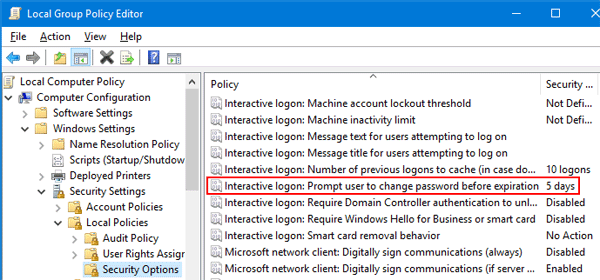
Next, double-click the “Interactive Logon: Prompt user to change password before expiration” policy on the right pane.
- Enter the number of days prior to password expiration that you want to notify users, and click OK.
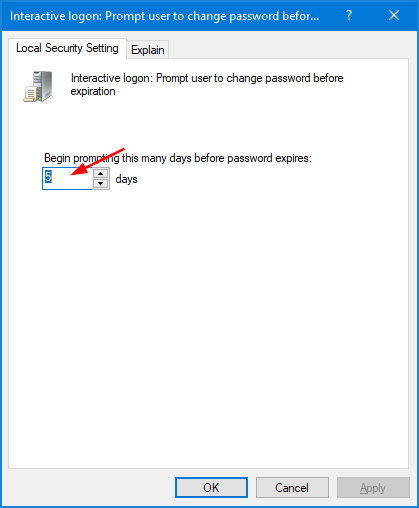
- Reboot your computer for the policy to take effect.
- Open Registry Editor and navigate to:
HKEY_LOCAL_MACHINE\SOFTWARE\Microsoft\Windows NT\CurrentVersion\Winlogon.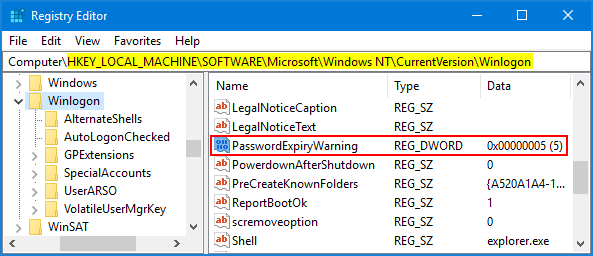
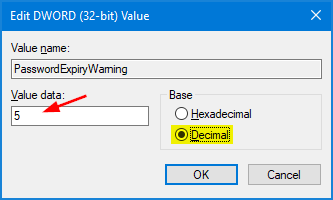
Double-click the PasswordExpiryWarning value on the right pane.
- Click the Decimal radio button and enter the number of days before password expires that you want to notify users, and click OK.
- Close Registry Editor and reboot your computer.
If you’re running Windows Server 2016 / 2014 / 2012 / 2008 domain controller, use this method to prompt domain users to change password before expiration:
- Click the Start button, select Administrative Tools and then click Group Policy Management.
- In the console tree, expand the Forest -> Domains -> your domain. Right-click the domain policy you want to work with, and then select Edit.
- When the Group Policy Management Editor window appears, navigate to Computer Configuration\Policies\Windows Settings\Security Settings\Local Policies\Security Options.
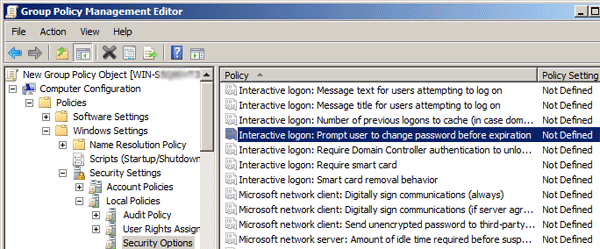
Then double-click the “Interactive Logon: Prompt user to change password before expiration” setting in the right pane. - In the Security Policy Setting tab, check the “Define this policy setting” option, and enter the number of days in advance users are warned that their passwords are about to expire.
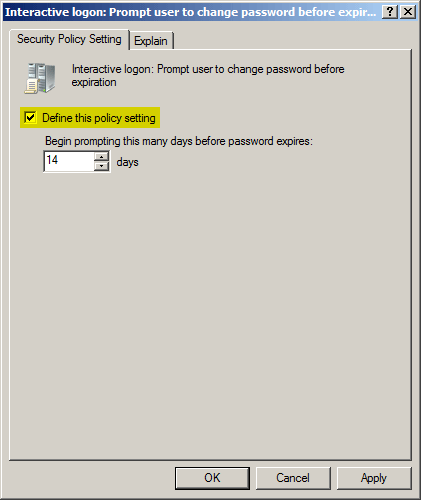
- Click Apply and then OK. Reboot your server.
 Posted in:
