Windows Defender is the default antivirus app shipped with Windows
10. Earlier versions of Windows like Windows 8.1, Windows 8, Windows 7
and Vista also had it but it was less efficient previously as it only
scanned spyware and adware. In Windows 8 and Windows 10, Defender is
based on the Microsoft Security Essentials app which offers better
protection by adding full blown protection against all kinds of malware.
However, despite Microsoft's claims that it offers full protection,
studies have found that third party antivirus apps still offer better
protection. If you prefer to use a third party anti malware app, you
might want to disable Windows Defender. Here is how you can disable it.
Option one
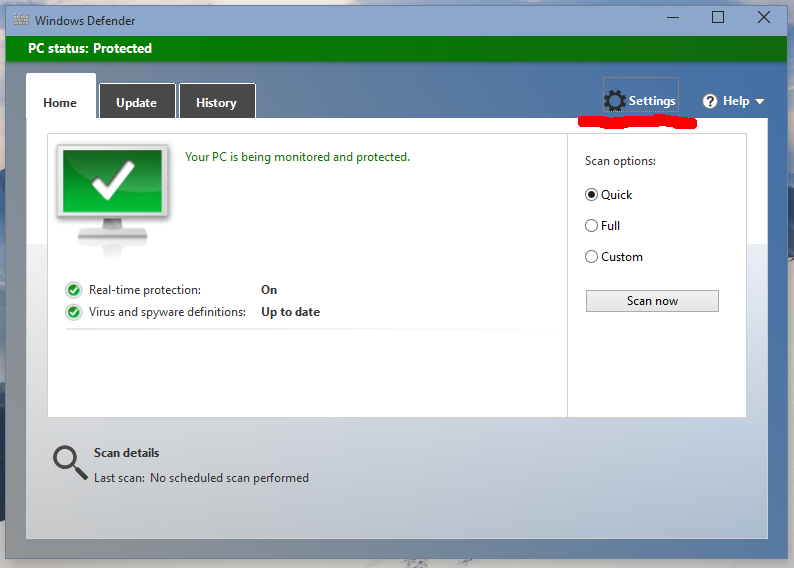
Windows Defender can be turned off via its preferences. To access it,
you need to open the user interface of Windows Defender. To open it
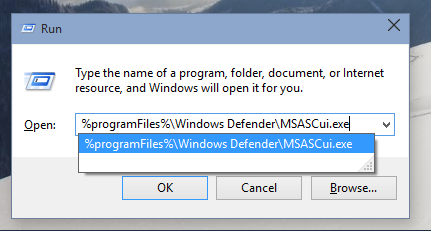
quickly, press Win + R on the keyboard (see the
ultimate list of Win key shortcuts) and type the following in the Run box:
%ProgramFiles%\Windows Defender\MSASCui.exe


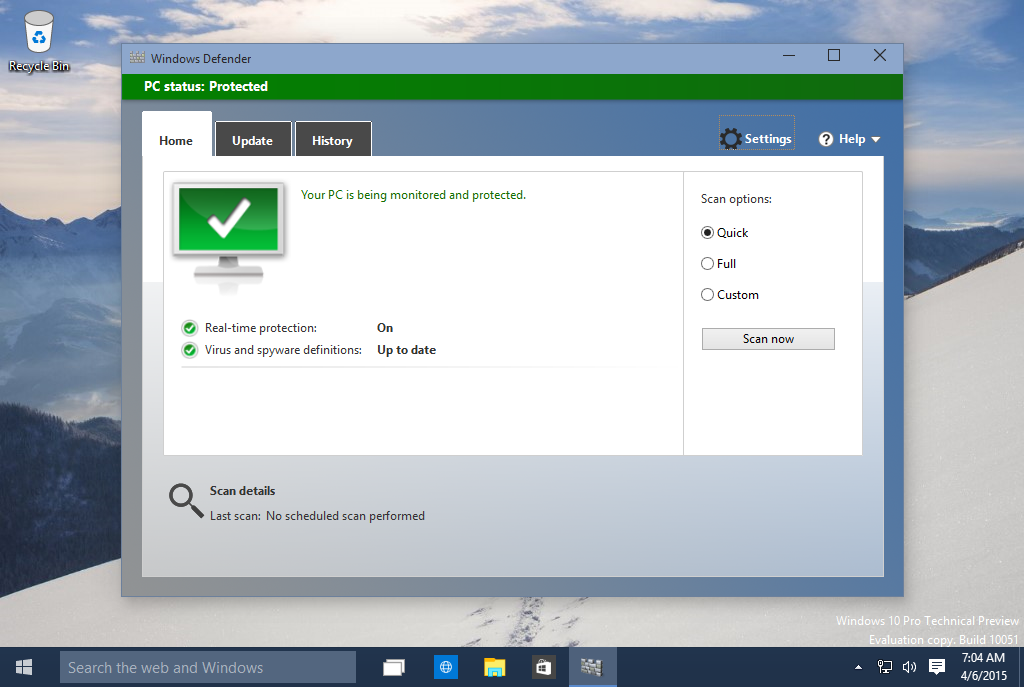
Run it and click on the Settings button.

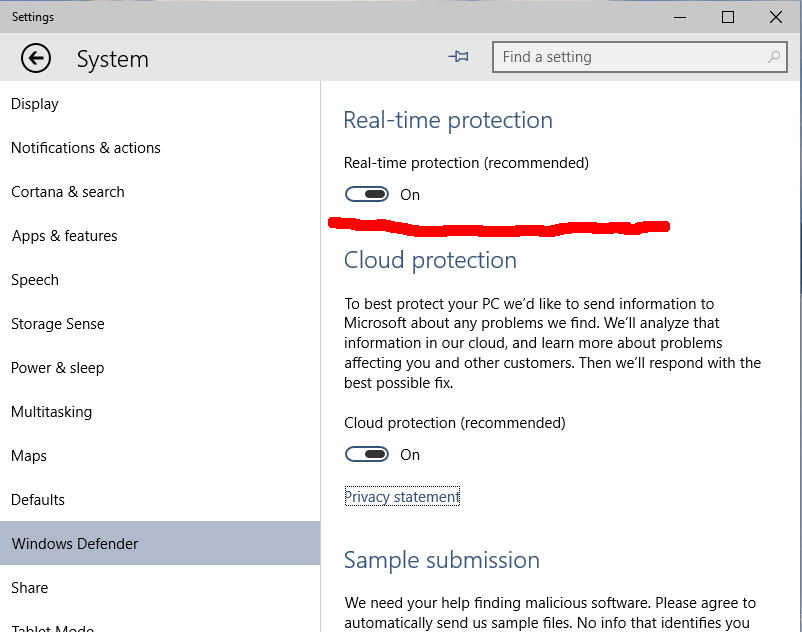
The Settings app will be opened:

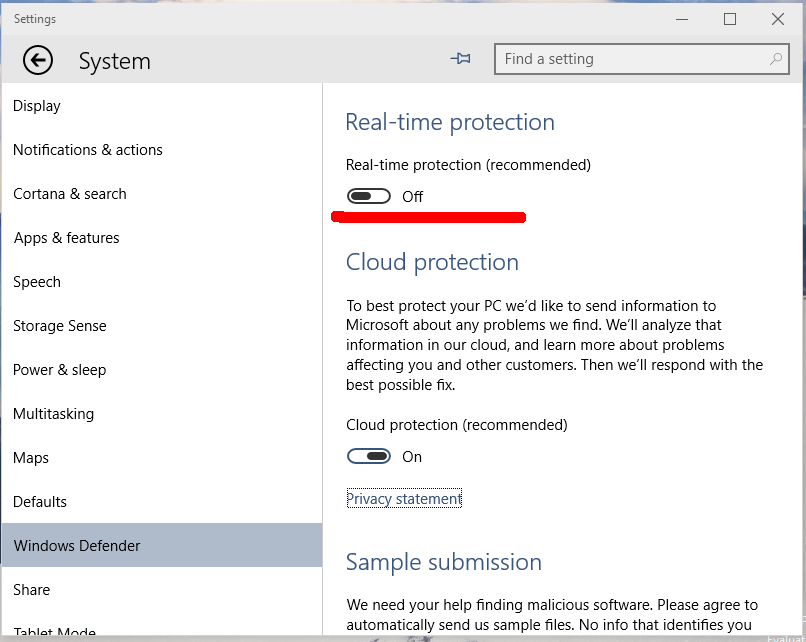
Toggle the "Real-time protection" option to
Off.
This will disable Windows Defender in Windows 10.

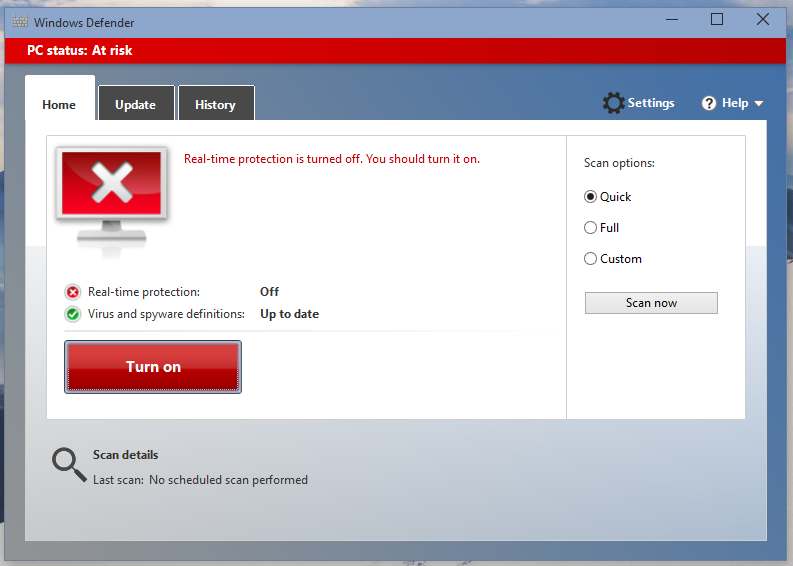
If you will open Windows Defender once again, it look as follows:
 Option two
Many users report that in Windows 10, Defender is able to re-enable
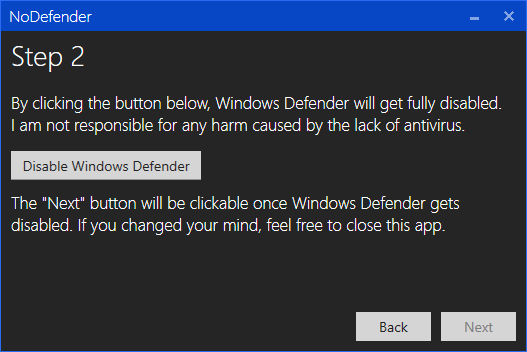
itself after you disable it. To prevent this, use the NoDefender app.

NoDefender is a freeware which allows you to disable Windows Defender completely. Read the following article: NoDefender – Disable Windows Defender in Windows 10 with few clicks
Option three
If none of the tricks mentioned above work for you, try to disable
Windows Defender with Group Policy. Import the following registry
tweak:
Windows Registry Editor Version 5.00
[HKEY_LOCAL_MACHINE\SOFTWARE\Policies\Microsoft\Windows Defender]
 “DisableAntiSpyware”=dword:00000001
[HKEY_LOCAL_MACHINE\SOFTWARE\Policies\Microsoft\Windows Defender\Real-Time Protection]
 “DisableBehaviorMonitoring”=dword:00000001
 “DisableOnAccessProtection”=dword:00000001
 “DisableScanOnRealtimeEnable”=dword:00000001
You need to reboot your PC.
Download ready-to-use registry files from here:
The undo file is included.
That's it. Please leave a comment about which method you tried and which worked for you. Thanks in advance.




 9:58 AM
 MISDUONG

 Khai báo trong form header:

 Posted in: